# Clover Customer Setup
## Cloud Integration
This integration requires two string keys you may get by following the steps below. Please provide these two keys to BarTrack once obtained.
## Setup Instructions
### Part 1 - API Key Creation
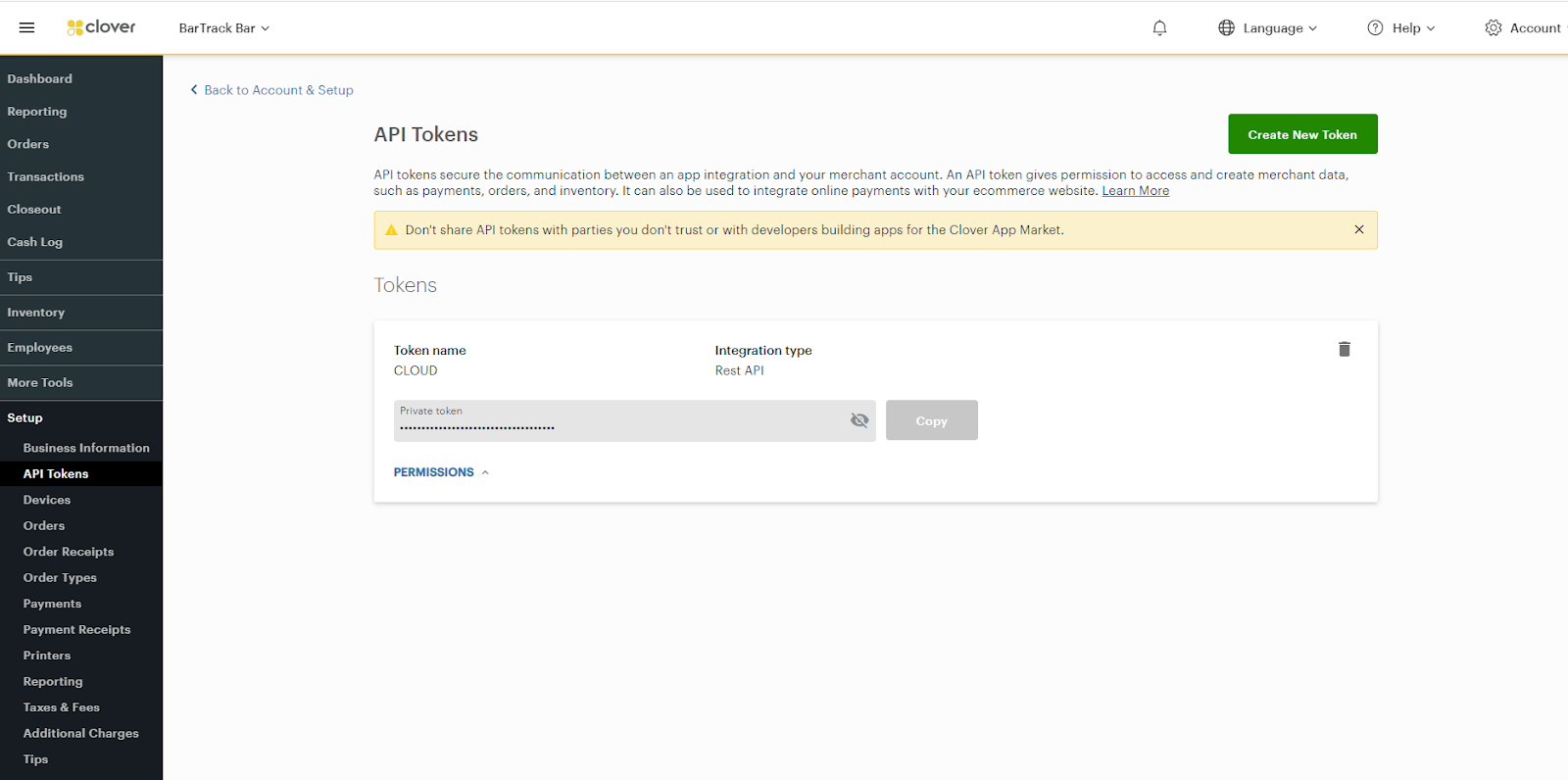
1. Click API Tokens in the navigation menu.
[](https://wiki.bartrack.beer/uploads/images/gallery/2022-03/image-1648694222656.png)
2. Enable two-factor authentication (requirement of creating a token).
3. Click the green Create New Token button.
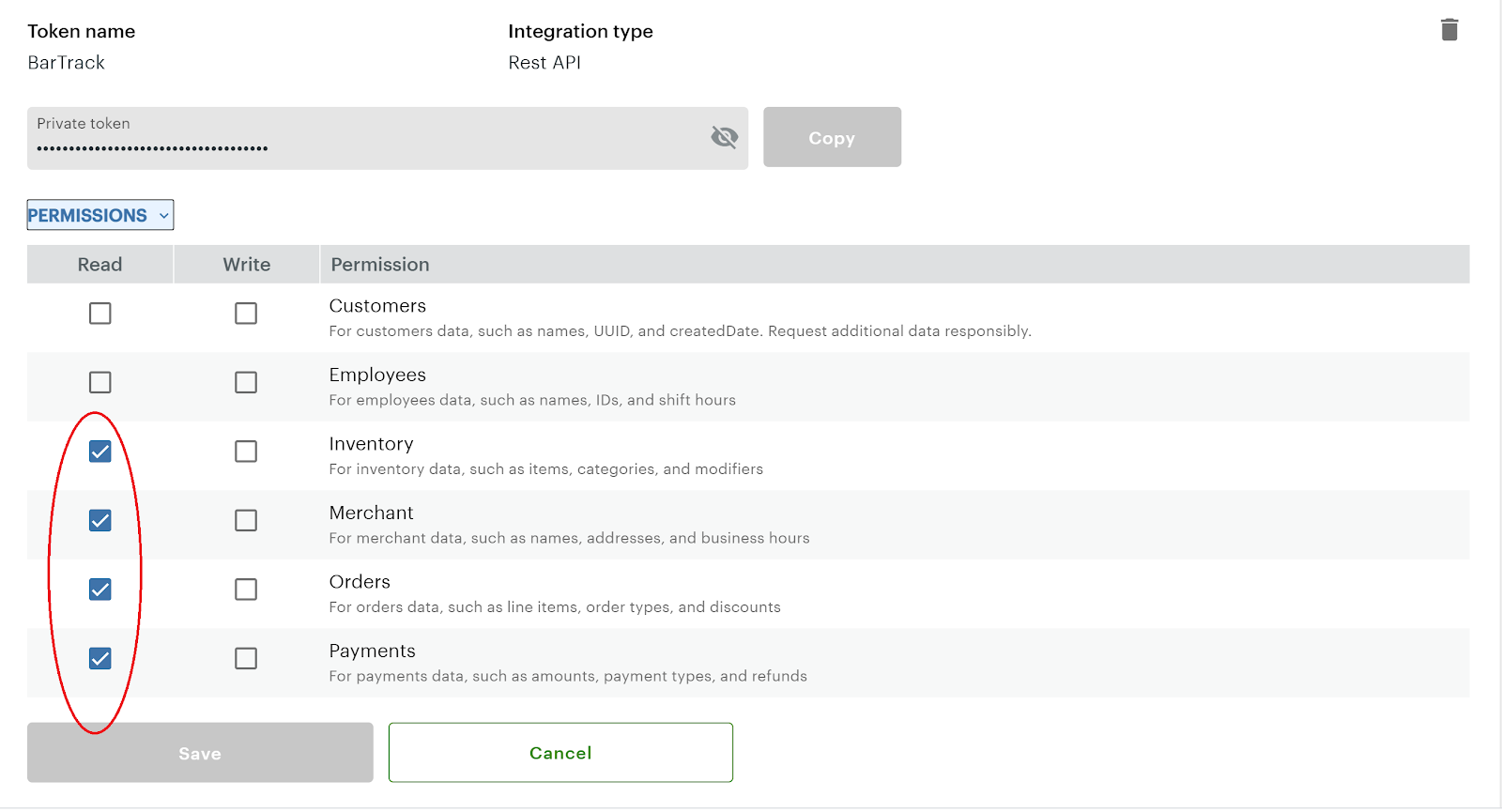
4. Name the token BarTrack and select the following “READ” roles:
- Inventory
- Merchant
- Orders
- Payments
[](https://wiki.bartrack.beer/uploads/images/gallery/2022-03/image-1648694235438.png)
5. Click Save.
6. The dialog will close. Then click the eyeball icon to show the hidden token. Copy the key and save it somewhere safe.
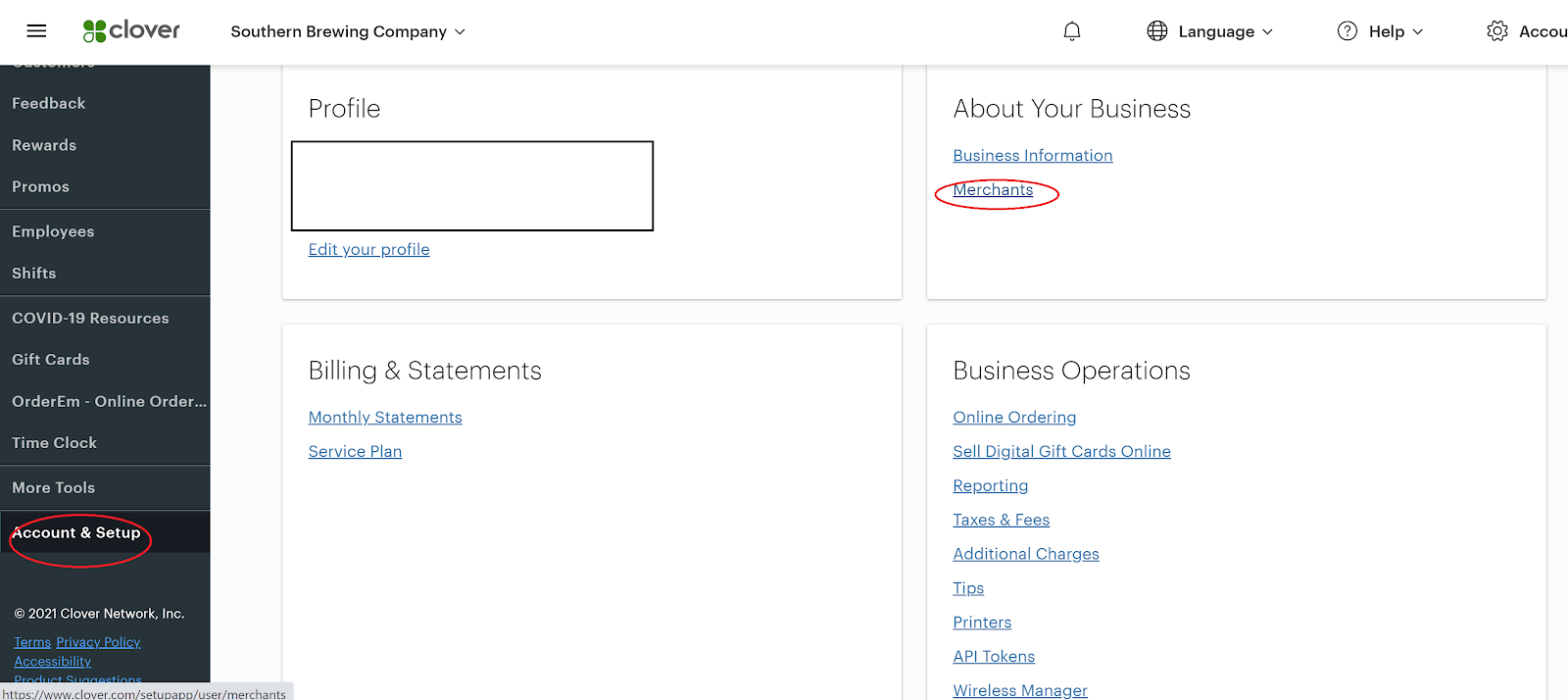
1. Click Account & Setup on the navigation menu.
[](https://wiki.bartrack.beer/uploads/images/gallery/2022-03/image-1648694363076.png)
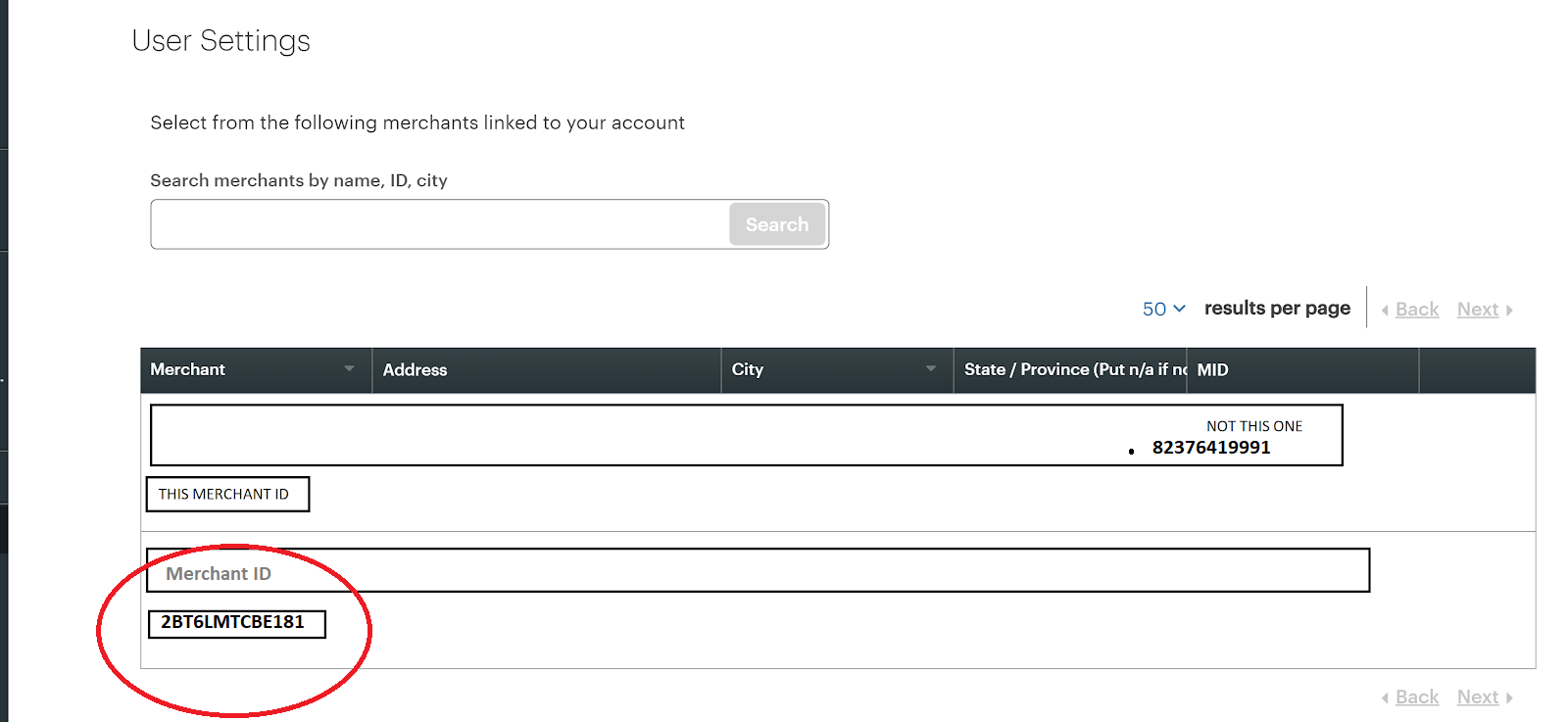
2. Obtain and copy the Merchant ID below the location name (not the MID).
[](https://wiki.bartrack.beer/uploads/images/gallery/2022-03/image-1648694372811.png)